
Version 12: At the end of the installation process, you are prompted to confirm that the last disk of the installation set is in your floppy drive in order to complete the Setup process. This is normal. But when you click on "OK," you get the error message "Error Updating Installation Count."
The Software Protection system used by Arbor Image requires that information be written back to the last disk during this procedure. If you get the error message quoted above, it means that, for whatever reason, your computer isn't able to do this. This page describes the most likely causes of this problem, and what can be done about them.
The two most likely causes of this problem are:
If after ruling out the causes given here you're still having trouble, call Arbor Image Tech Support at (734) 741-8700 for further assistance.
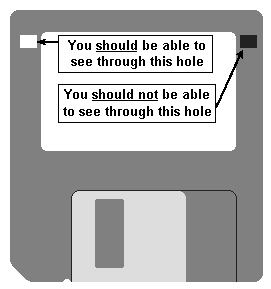
Since information must be written back to the disk during this procedure, if the disk is write-protected the process will fail. Normally we do not write-protect disks before we send them out, but some customers have reported receiving protected disks from us. Some people, as a matter of habit, write-protect all their software disks as soon as they receive them. However it happened, in this case the solution is to change the write-protection tab on the back of the floppy.
To see if the disk is write-protected, hold the disk as illustrated, with the label facing you and the metal "gate" at the bottom. In the upper corners there are two rectangular "holes." You should be able to see through the hole on the left; you should not be able to see through the hole on the right. If you can see through the hole on the right, then the disk is write-protected and this setting will have to be changed.
If you flip the disk over, you will see that one of these "holes" can be covered or uncovered by a plastic tab. If the hole is uncovered (if you can see through it) then use your thumbnail to slide the tab all the way to cover the hole. This will dissable the write-protection. If the disk is not write-protected but you're still getting the same error, the most likely cause is a defective floppy disk. Back to Top...
To launch ScanDisk, go to Start, Programs, Accessories, System Tools, ScanDisk. You will then see a dialog box like this:
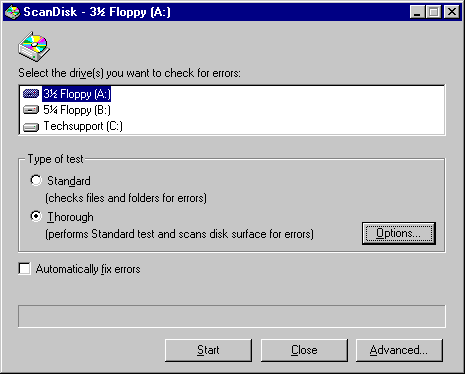
Configure the settings as shown in the above illustration (Floppy drive, Thorough test, do not automatically fix errors), then click on the Options button. You will see a new dialog box:
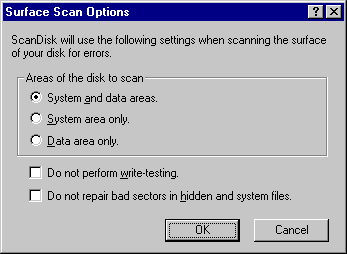
Configure this box as shown, (the only option chosen should be to scan System and Data areas) and click OK. In the ScanDisk box, click Start. The scan will take a few minutes.
If ScanDisk finds errors on the floppy, do not have the program try to fix them. Data may already be corrupted or lost. The disk will have to be returned to Arbor Image. Call Tech Support at (734) 741-8700 and we'll send another out to you right away. Please return the defective disk to us when you receive the replacement. Back to Top...
2. The floppy drive may not be functioning properly. This should be checked by a qualified technician.
If, after ruling out all of the causes given on this page, you're still having trouble, call Arbor Image Tech Support at (734) 741-8700 for further assistance. Back to Top...
[ Arbor Image Home Page | Draftsman PLUS 32 Page | Tech Support Files ]
Contents of this page (Text & Graphics) Copyright (C) 1997 Arbor Image Corporation. All rights reserved.